Mini projectors can turn an iPhone into a convenient big-screen entertainment source, allowing users to watch movies, share photos, display presentations, and enjoy videos on a larger screen. However, not every mini projector connects to an iPhone in the same way.
The best connection method depends on your projector's wireless capabilities, your iPhone's charging port, and the type of content you want to display.
This guide explains how to connect an iPhone to a mini projector using wireless and wired methods, compares USB-C and Lightning connections, and highlights common compatibility limitations.
1. Are Mini Projectors Compatible with iPhones?
Yes. Many mini projectors can work with iPhones through wireless screen mirroring or a wired HDMI connection. However, compatibility depends on the projector's supported connection protocols and the iPhone model.
There are two main ways to connect an iPhone to a mini projector:
· Wireless connection: Mirror or stream content through a supported wireless protocol, such as AirPlay.
· Wired connection: Use a compatible Apple digital AV adapter and an HDMI cable.
Wireless connections are convenient for everyday entertainment, while wired connections are often more reliable when Wi-Fi is unstable or when you want to avoid wireless interruptions.
Before purchasing a projector, check whether it explicitly supports iPhone screen mirroring or requires an additional streaming device.
2. How to Connect an iPhone to a Mini Projector Wirelessly
Wireless projection is usually the most convenient option because it does not require a physical cable between your iPhone and projector.
However, having Wi-Fi does not automatically mean a projector supports AirPlay. Always check its supported protocols.
Method 1: Using AirPlay
If your mini projector supports AirPlay, you can mirror your iPhone screen directly.
Follow these steps:
1. Connect your iPhone and projector to the same Wi-Fi network.
2. Turn on the projector's AirPlay or screen-mirroring function.
3. Open Control Center on your iPhone.
4. Tap Screen Mirroring.
5. Select your projector from the available devices.
6. Enter the displayed passcode if requested.
Your iPhone screen should now appear on the projected display.
Method 2: Using a Screen-Mirroring App
Some smart projectors provide built-in wireless mirroring applications that support iOS devices.
The general process is:
1. Open the screen-mirroring application on the projector.
2. Follow its instructions to establish a connection.
3. Connect your iPhone to the required Wi-Fi network.
4. Open Screen Mirroring or the corresponding casting option on your iPhone.
5. Select the supported receiving device.
Important: Not all third-party mirroring applications use AirPlay. Some require a separate app, a specific network configuration, or additional permissions.
Also, screen mirroring may introduce some delay, making it less suitable for fast-paced gaming.
3. How to Connect an iPhone to a Mini Projector with a Cable
A wired connection is a practical alternative when wireless mirroring is unavailable or unstable.
Most mini projectors have an HDMI input, so the key is choosing the correct adapter for your iPhone.
For USB-C iPhones
iPhone 15 and later models introduced USB-C connectivity.
For supported models, you can use:
· A USB-C to HDMI adapter.
· A USB-C to HDMI cable.
Connection steps:
1. Connect the USB-C adapter to your iPhone.
2. Connect an HDMI cable between the adapter and projector, if required.
3. Select the corresponding HDMI input on the projector.
4. Wait for the external display connection to initialize.
Compatible iPhone models support DisplayPort video output through USB-C. However, not every USB-C accessory supports video transmission, so choose an adapter or cable specifically designed for video output.
For Lightning iPhones
Older iPhone models, including many iPhone 14 and earlier devices, use the Lightning connector.
You generally need:
· A compatible Lightning Digital AV Adapter.
· An HDMI cable.
Connection steps:
1. Connect the Lightning Digital AV Adapter to your iPhone.
2. Plug the HDMI cable into the adapter.
3. Connect the other end of the HDMI cable to the projector.
4. Switch the projector's input source to HDMI.
An adapter with an additional charging port can also help keep your iPhone powered during longer viewing sessions.
4. USB-C vs. Lightning: Which iPhone Connection Do You Need?
The biggest difference is the physical connector and the video-output method supported by the iPhone.
|
Feature |
USB-C iPhone |
Lightning iPhone |
|
Common models |
iPhone 15 and later |
Many iPhone 14 and earlier |
|
HDMI connection |
USB-C to HDMI adapter |
Lightning Digital AV Adapter |
|
Direct USB-C video output |
Supported on compatible models |
Not applicable |
|
Additional adapter |
Usually required for HDMI |
Usually required for HDMI |
|
Wireless mirroring |
Supported with compatible devices |
Supported with compatible devices |
Which one is better?
USB-C offers a more versatile connection standard and supports direct video output on compatible iPhone models. Lightning users can also connect to projectors reliably with the appropriate digital AV adapter.
Remember that a USB-C charging cable is not necessarily a video cable. Similarly, a basic Lightning charging cable cannot directly transmit a projector-ready video signal.
For Apple's detailed connection instructions, see its official guide to connecting an iPhone to an external display.
5. Common iPhone and Mini Projector Compatibility Limitations
Even when a projector advertises wireless connectivity or HDMI input, some limitations may affect the viewing experience.
1. Wi-Fi Does Not Always Mean AirPlay Support
A projector may support Wi-Fi for internet access and built-in applications without supporting native AirPlay.
Check the product specifications for explicit iOS mirroring or AirPlay support before purchasing.
2. Streaming Apps May Restrict Screen Mirroring
Some streaming services use copyright protection technologies such as HDCP.
As a result, you might successfully mirror your iPhone home screen but encounter a black screen or playback error when opening certain streaming applications.
In these situations, consider using a supported streaming application directly on the projector or a compatible external streaming device.
3. Not Every USB-C Adapter Supports Video
Some USB-C adapters are designed only for charging or data transfer.
For wired projection, make sure the adapter supports DisplayPort video output and HDMI conversion.
4. Wireless Connections Depend on Network Quality
Wi-Fi interference, network congestion, and distance between devices can cause lag, buffering, or disconnections.
For a more stable experience, keep both devices close to the router and use a reliable network.
5. Projector Resolution Still Matters
Connecting an iPhone does not automatically make a projector display content at the iPhone's original resolution.
The final image quality depends on the projector's native resolution, supported input formats, brightness, and video-processing capabilities.
6. What to Look for When Buying an iPhone-Compatible Mini Projector
If you plan to use your iPhone as your primary media source, consider these features before buying:
|
Feature |
Why It Matters |
|
iOS screen mirroring |
Makes wireless connection easier |
|
AirPlay support |
Enables compatible native wireless mirroring |
|
HDMI input |
Provides a practical wired connection |
|
Native 1080P resolution |
Delivers clearer projected images |
|
Wi-Fi 6 |
Can improve wireless network performance with a compatible router |
|
Bluetooth |
Allows connection to external speakers or headphones |
|
Autofocus and auto keystone |
Simplify image setup |
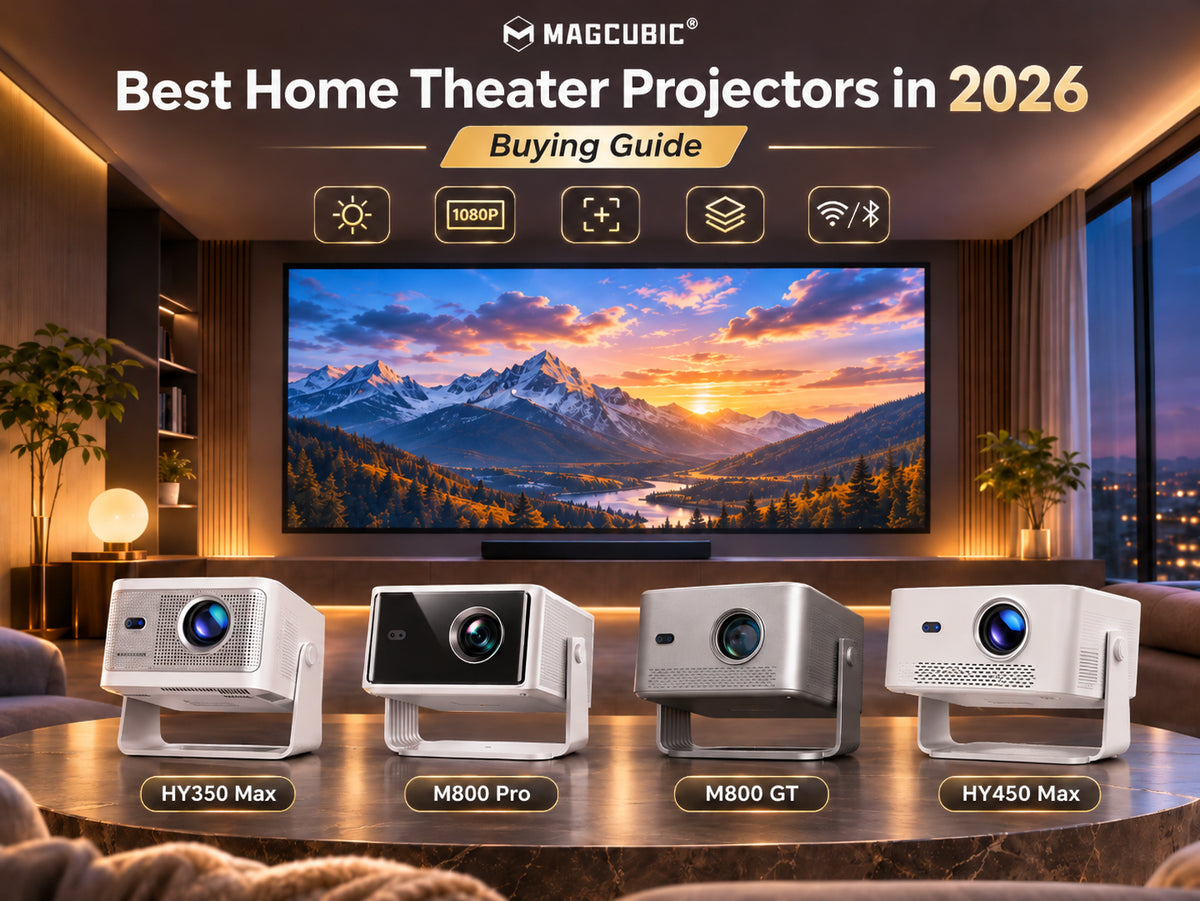
For example, Magcubic's compact projector range offers different combinations of smart features, wireless connectivity, and image adjustment functions. When choosing a model, check its individual specifications to confirm the exact iPhone connection methods it supports.
Explore the Magcubic projector collection to learn more about its projector options.
7. Frequently Asked Questions
Can I connect my iPhone to any mini projector?
Not necessarily. The projector must support a compatible connection method, such as HDMI input or an appropriate wireless mirroring protocol. Check the specifications before purchasing.
Can I connect my iPhone to a projector without Wi-Fi?
Yes. A wired HDMI connection using the correct Lightning or USB-C adapter does not require Wi-Fi.
Why does my iPhone connect to the projector but show a black screen?
Certain streaming applications restrict screen mirroring because of copyright protection. Try a supported playback method or a compatible external streaming device.
Do I need an Apple adapter to connect my iPhone to a projector?
For a wired HDMI connection, you need a compatible video adapter. Apple's Digital AV adapters are designed for this purpose. Third-party adapters may also work if they support the required video output standard.
Can I use Bluetooth to mirror my iPhone screen?
No. Bluetooth alone does not transmit your iPhone's screen video to a projector. Screen mirroring generally requires a supported wireless network protocol or a wired video connection.
Is wireless or wired projection better for an iPhone?
Wireless projection is more convenient for everyday entertainment and presentations. Wired HDMI connections are generally preferable when you need a more consistent connection or when the projector does not support compatible wireless mirroring.
Conclusion
Choosing an iPhone-compatible mini projector is not simply about finding a model with Wi-Fi or Bluetooth. You need to consider its actual screen-mirroring protocols, HDMI connectivity, and compatibility with your iPhone's charging port.
USB-C iPhones can use compatible USB-C video adapters, while Lightning iPhones generally require a Lightning Digital AV Adapter for wired projection. For wireless use, always verify AirPlay or iOS mirroring support.
By checking these details before purchasing, you can avoid common connection problems and enjoy a smoother big-screen experience with your iPhone.