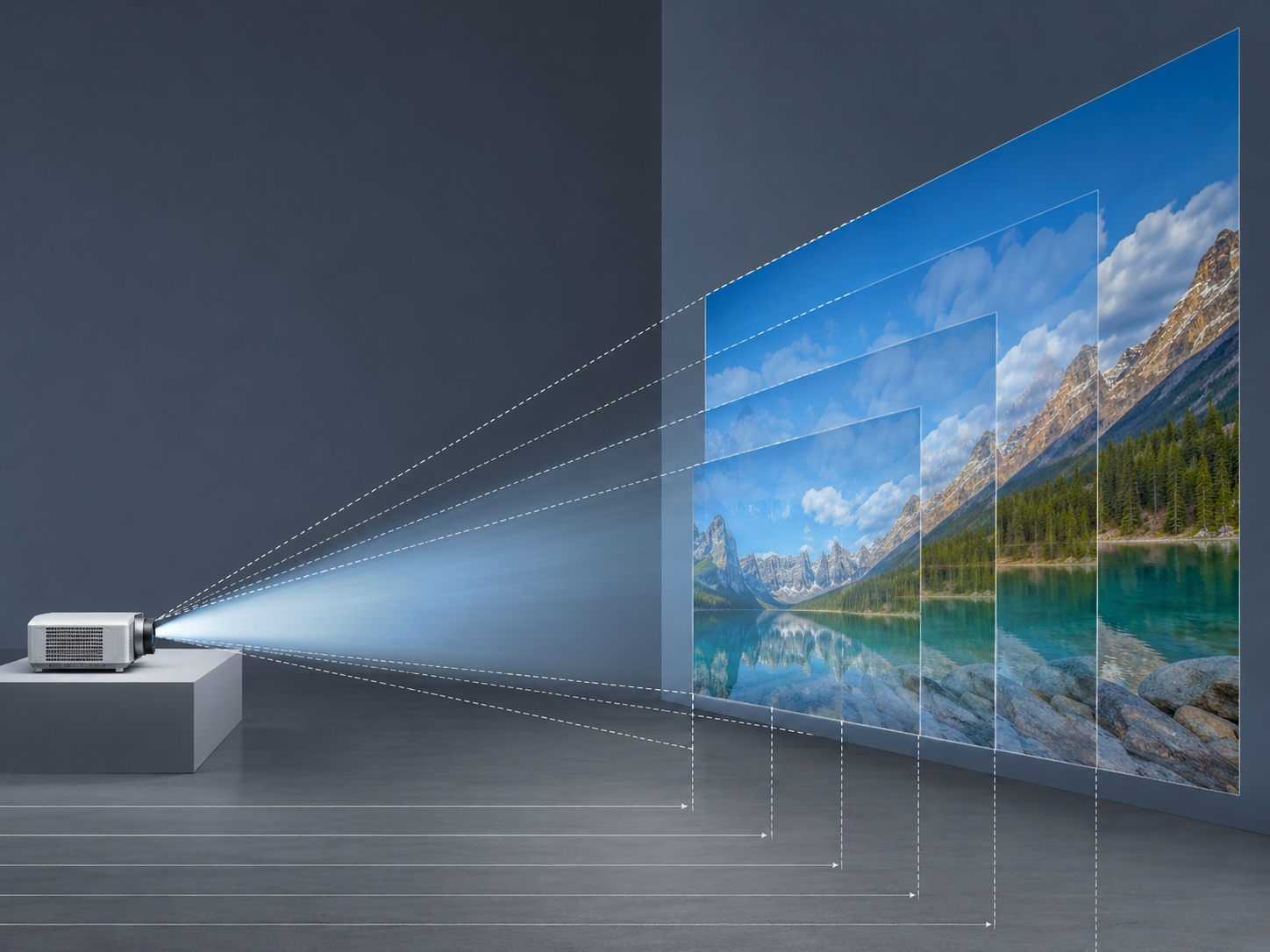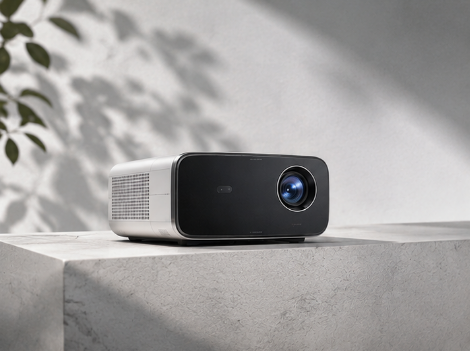

Watching movies on a projector creates a much bigger and more immersive experience than a traditional TV. If you already own an Amazon Fire TV Stick, connecting it to your projector is one of the easiest ways to enjoy Netflix, Prime Video, Disney+, YouTube, Hulu, and thousands of other streaming apps on a large screen.
The good news? Most modern projectors—including Magcubic smart projectors—support Fire TV Stick without complicated setup.
In this guide, you'll learn:
· How to connect a Fire TV Stick to any projector
· What you'll need before setup
· How to solve common connection problems
· Whether you still need a Fire TV Stick if your projector is already smart
· Tips for getting the best streaming experience
What You'll Need
Before getting started, prepare the following:
· Amazon Fire TV Stick (any generation)
· Projector with an HDMI input
· USB power source (adapter or USB port)
· Wi-Fi connection
· Fire TV remote
If your projector has multiple HDMI ports, you can use any available one.
Step 1: Plug the Fire TV Stick into the HDMI Port
Simply insert the Fire TV Stick into your projector's HDMI input.
If there isn't enough space around the HDMI port, use the HDMI extension cable included with your Fire TV Stick.
Tip: Always connect the Fire TV Stick directly to the projector instead of through unnecessary adapters whenever possible.
Step 2: Connect the Power Cable
Unlike Chromecast, the Fire TV Stick requires continuous external power.
Connect the USB cable to either:
· The supplied wall adapter (recommended)
· Your projector's USB port (only if it provides sufficient power)
If the Fire TV Stick repeatedly restarts or shows a low-power warning, switch to the original Amazon power adapter.
Step 3: Select the Correct HDMI Input
Turn on your projector.
Using the projector remote:Input → HDMI 1 / HDMI 2
After a few seconds, the Fire TV startup screen should appear.
If the screen remains blank, double-check the selected HDMI source.
Step 4: Pair the Remote
Insert batteries into the Fire TV remote.
Most remotes automatically pair during the first startup.
If not:
1. Hold the Home button for about 10 seconds.
2. Wait for pairing confirmation.
3. Continue setup.
Step 5: Connect to Wi-Fi
Choose your Wi-Fi network and enter the password.
A stable internet connection is essential for smooth streaming.
For the best experience:
· Use a 5 GHz Wi-Fi network when available.
· Place the projector within good router range.
· Avoid crowded wireless channels.
Step 6: Sign in to Your Amazon Account
Log into your Amazon account.
Once signed in, your Fire TV Stick is now ready to stream.
How to Get Audio from Your Projector
Many users ask:"Will sound come through the projector?"The answer depends on your setup.
Option 1: Use the Projector's Built-in Speaker
Most portable projectors include integrated speakers.This is the easiest solution for casual viewing.
Option 2: Connect Bluetooth Speakers
Many Fire TV Stick models support Bluetooth audio devices.
Pair:
· Bluetooth speakers
· Soundbars
· Wireless headphones
This provides much better sound for movies.
Option 3: Use HDMI ARC or AUX Output
Some projectors support:
· HDMI ARC
· 3.5 mm audio output
· Optical audio output
These allow connection to external speakers or home theater systems.
Common Fire TV Stick Connection Problems
Fire TV Stick Not Showing on the Projector
Possible causes:
· Wrong HDMI source selected
· Loose HDMI connection
· Insufficient USB power
· Faulty HDMI cable
Try unplugging and reconnecting the Fire TV Stick.
Fire TV Keeps Restarting
Usually caused by insufficient power.
Solution:Use the original Amazon wall adapter instead of the projector's USB port.
No Sound
Check:
· Projector volume
· Fire TV audio settings
· External speaker connection
· Bluetooth pairing
Restart both devices if necessary.
Wi-Fi Keeps Disconnecting
Try:
· Moving closer to the router
· Switching to 5 GHz Wi-Fi
· Restarting the router
· Updating Fire TV software
Can You Use a Fire TV Stick with a Smart Projector?
Yes.
Even if your projector already runs Android TV or Google TV, many users still prefer using a Fire TV Stick because it offers:
· Familiar interface
· Faster software updates
· Alexa voice control
· Better app compatibility
· Easy transfer between TVs and projectors
If your projector's built-in operating system feels slow, a Fire TV Stick can noticeably improve the streaming experience.
Do Magcubic Projectors Work with Fire TV Stick?
Absolutely.
Most Magcubic projectors include HDMI input, making them fully compatible with Fire TV Stick.
For example:Magcubic HY320 Pro
· Native 1080P resolution
· Bright 400 ANSI lumens
· Android 14
· Dual-band Wi-Fi
· Bluetooth
· HDMI input for Fire TV Stick, game consoles, and laptops
Although the projector already includes smart streaming features, connecting a Fire TV Stick provides another convenient option if you prefer Amazon's streaming ecosystem or already use Fire TV in your home.
Whether you're watching Prime Video, Netflix, YouTube, or live sports, the setup only takes a few minutes.
Tips for the Best Streaming Experience
To get the most from your Fire TV Stick and projector:
· Use a stable Wi-Fi connection.
· Power the Fire TV Stick with the original adapter.
· Update both the Fire TV software and projector firmware.
· Use external speakers for larger rooms.
· Choose a darker environment for better image quality.
· Position the projector correctly to avoid keystone distortion.
These simple steps can significantly improve both picture quality and streaming performance.
Final Thoughts
Connecting a Fire TV Stick to a projector is quick and straightforward. In most cases, you only need an HDMI connection, a power source, and Wi-Fi to start enjoying movies, TV shows, sports, and games on a much larger screen.
Whether you're creating a home theater, watching a big game, or enjoying an outdoor movie night, pairing a Fire TV Stick with a projector offers a flexible and affordable entertainment solution.
If you're looking for a projector that works seamlessly with Fire TV Stick while also offering built-in smart features, Magcubic projectors provide HDMI compatibility, Android-based streaming, Wi-Fi connectivity, and portable designs that make big-screen entertainment easy anywhere.
FAQ
Why isn't my Fire TV Stick displaying on my projector?
Check that the correct HDMI input is selected, ensure the Fire TV Stick has enough power, and verify that all cables are securely connected.
Can I use Netflix on a projector through Fire TV Stick?
Yes. Fire TV Stick supports Netflix, Prime Video, Disney+, YouTube, Hulu, Max, and many other streaming services, subject to your subscriptions.
Do I need a Fire TV Stick if my projector already has Android TV?
Not necessarily. If your projector already provides the apps and performance you need, a Fire TV Stick isn't required. However, many users prefer it for its familiar interface, Alexa integration, and consistent software updates.