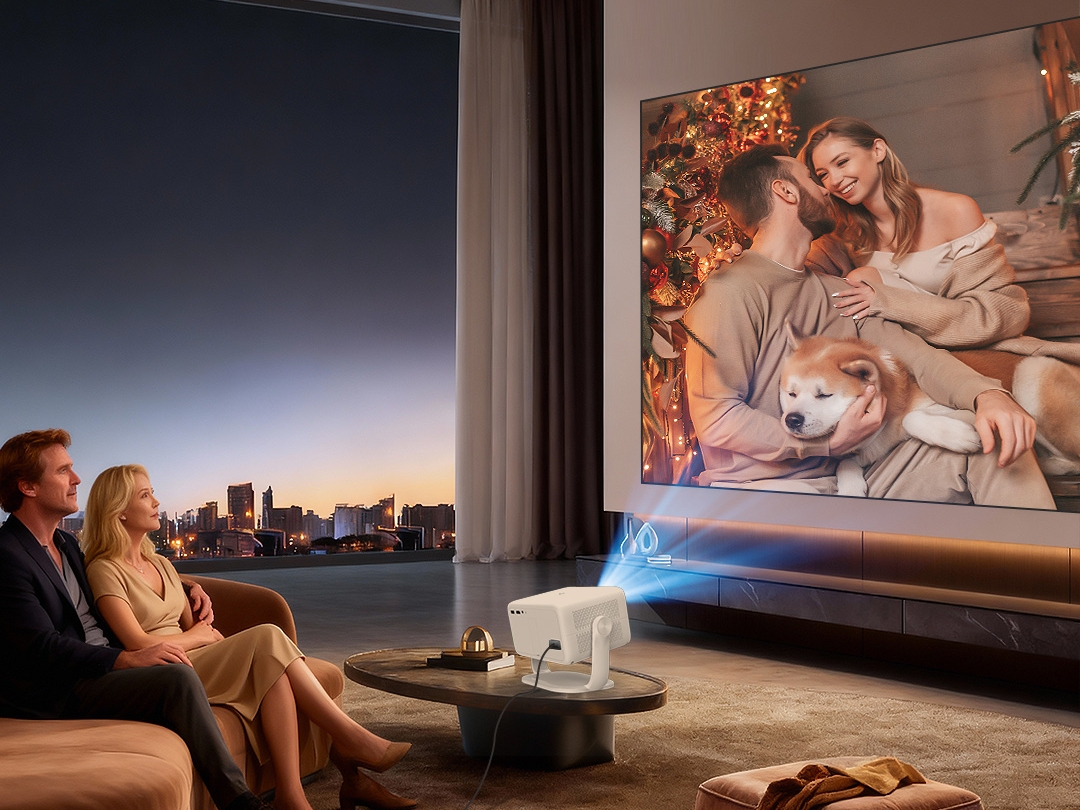

Whether you’re setting up a movie night, giving a presentation, or gaming on a big screen, connecting your iPhone to a projector is usually a fast process. In most cases, you can mirror apps, videos, and photos in just a few minutes with the right adapter, cable, or wireless setup.
In this guide, we’ll walk through how to connect your iPhone to a projector using both wired and wireless methods, so you can choose the option that best fits your setup.

1. Check the compatibility of the projector
Before you connect, confirm what type of projector you have. This step matters because the connection method depends on whether your projector supports HDMI, USB-C, WiFi, or AirPlay.
Most modern projectors offer one or more of the following options:
· HDMI port, the most common input
· USB-C or Lightning-compatible port
· WiFi or Bluetooth wireless connection
· Screen mirroring or AirPlay support
If your projector supports AirPlay or wireless mirroring, you can connect your iPhone without cables. Otherwise, you’ll need a compatible adapter or cable, and some setups may require a streaming device such as Chromecast, Roku, or Fire TV Stick.
2. Connect your iPhone to the projector via a wired connection
A wired HDMI connection is the most stable and widely compatible option. Because iPhones do not include an HDMI port, you’ll need the right adapter for your device.
HDMI wired connection steps
Step 1: Prepare the official Apple Lightning Digital AV Adapter for iPhones with a Lightning port, or a USB-C to HDMI adapter for iPhone 15 and newer models.
Step 2: Insert the adapter into your iPhone’s charging port. Then connect one end of the HDMI cable to the adapter and the other end to the projector’s HDMI port.
Step 3: Turn on the projector and switch it to the correct HDMI input source using the remote control or input button.
Step 4: Your iPhone screen should appear on the projector within a few seconds. If it does not, open Control Center, tap Screen Mirroring, and select your projector.
For best results, keep your iPhone charged or connected to power, since mirroring video can drain the battery quickly during longer sessions.
USB-C wired connection steps
If both your iPhone and projector support USB-C video input and output, you may be able to connect them directly with a USB-C cable. This is a simple option for newer devices, but compatibility is not guaranteed on every model.
Step 1: Confirm that both devices support video transmission through the USB-C port.
Step 2: Connect one end of the USB-C video cable to the iPhone and the other end to the projector.
Step 3: Turn on the projector and select the correct USB-C input source.
Step 4: Your iPhone should automatically mirror its display to the projector, usually within a few seconds.

3. Connect your iPhone to the projector via a wireless connection.
If your smart projector supports WiFi, wireless connection is convenient and cable-free. However, it works best when both devices are on the same network and the signal is stable.
AirPlay wireless connection steps
Step 1: Turn on the projector and enable AirPlay or screen mirroring mode.
Step 2: On your iPhone, swipe down from the top‑right corner to open Control Center.
Step 3: Tap Screen Mirroring and select your projector from the list.
Step 4: Wait a few seconds for the connection to complete.
Reference source:Use AirPlay to stream video or mirror the screen of your iPhone or iPad
Chromecast wireless connection steps
If your projector does not support AirPlay, you can use Chromecast, Roku, Fire TV Stick, or another compatible streaming device. This is a practical workaround for older projectors that still have HDMI but no built‑in wireless mirroring.
Step 1: Plug the streaming device into the projector’s HDMI port.
Step 2: Connect the streaming device to the same Wi‑Fi network as your iPhone.
Step 3: Use AirPlay or a compatible app such as YouTube or Netflix to play content.
Step 4: Use Screen Mirroring on your iPhone to select the streaming device or projector.

4. Troubleshooting tips
If your iPhone cannot connect to the projector, try these quick fixes:
· Check the Wi‑Fi network: For wireless connections, make sure both devices are on the same network.
· Check the ports and cables: For wired connections, confirm the cables are working and the ports are fully connected.
· Update software or firmware: Outdated iOS or projector firmware can block a successful connection.
· Restart the devices: Restart your iPhone, projector, and wireless router, then try again.
Conclusion
Now you know how to connect your iPhone to the projector, whether you prefer a simple HDMI cable or a completely wireless AirPlay setup. For the best experience, you might consider using a smart projector with built-in AirPlay support, which can be directly connected to an iPhone without the need for additional adapters or applications. Just turn on the power, mirror it, and enjoy your content on a large screen anywhere.
FAQs
1. Can I connect my iPhone to a projector without Wi-Fi?
Yes. You can connect your iPhone to a projector without WiFi by using a Lightning to HDMI adapter, such as the Apple Digital AV Adapter. Plug your iPhone into the adapter, connect an HDMI cable between the adapter and the projector, and your screen will display without internet access.
2. Why won’t my iPhone screen mirror to the projector?
If your iPhone won’t mirror, first make sure both devices are on the same WiFi network for wireless connections. For wired connections, confirm that your HDMI adapter and cable are compatible and functioning properly. Then restart both devices, update to the latest iOS, and verify that the projector input source is set correctly.