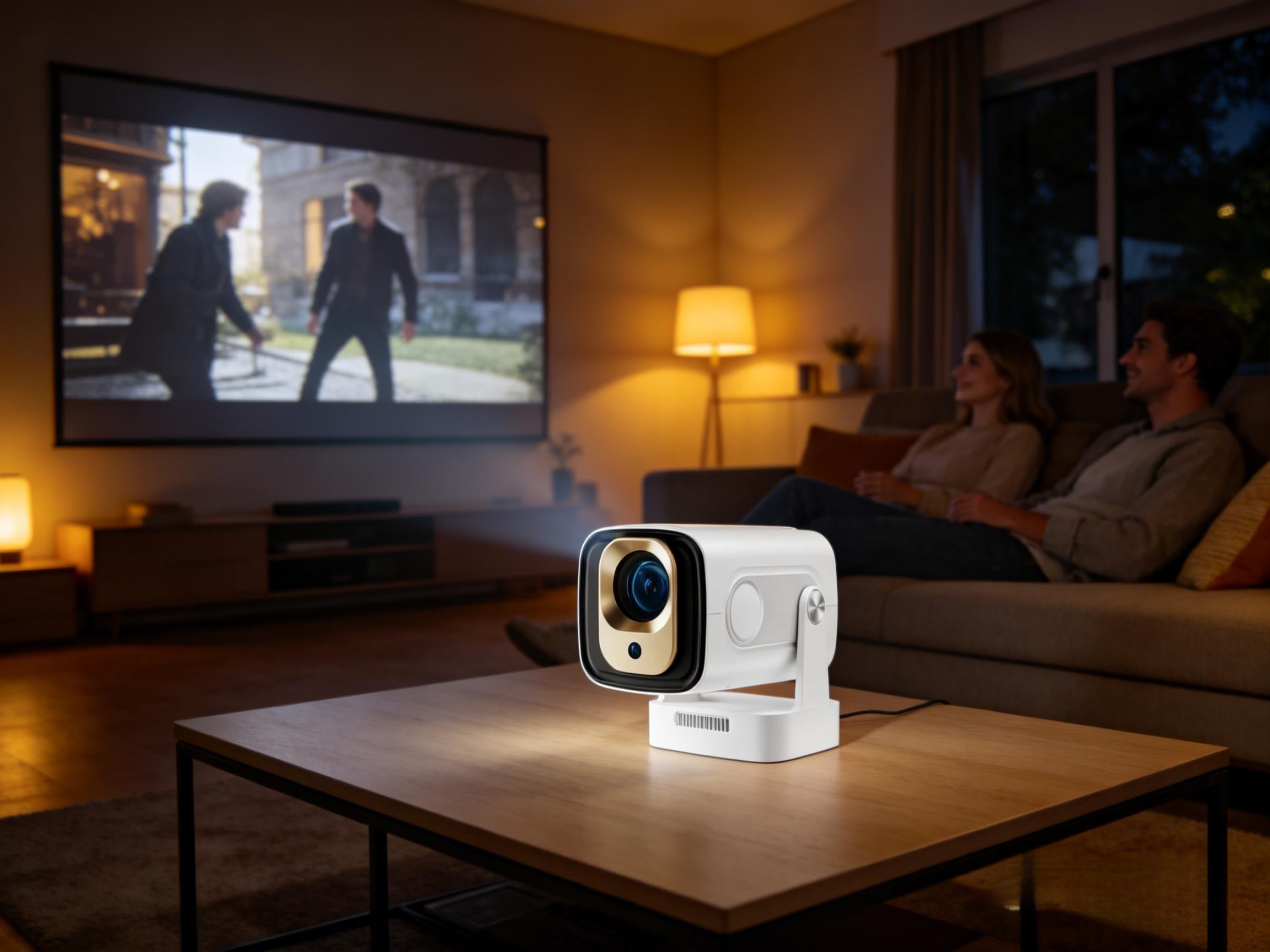

Getting ready to watch Netflix or YouTube, only to find your projector won’t connect to WiFi?It can’t find your network, keeps saying “connection failed,” shows connected but there’s no internet, or videos keep buffering…
Don’t worry — this is one of the most common issues with smart projectors.
About 90% of projector WiFi problems can be fixed in just a few minutes — no repairs needed.
In this guide, we’ll walk you through simple, step-by-step solutions to troubleshoot and fix your projector’s WiFi connection. These tips work for Android projectors, smart projectors, and models like Magcubic.
Why Won’t My Projector Connect to WiFi?
Before jumping into the fixes, it helps to understand the common causes.In most cases, it’s not a hardware problem. It’s usually something small like:
· The router is too far away (weak signal)
· Using an incompatible WiFi band (5GHz only)
· Incorrect WiFi password
· Wrong system time or time zone
· Router or system cache conflicts
· Outdated software or firmware
The good news is that all of these are easy to fix.
7 Ways to Fix a Projector That Won’t Connect to WiFi
Follow these steps in order. Most people solve the problem within the first two or three methods.
✅ Fix 1: Restart Your Projector and Router (Most Effective)
This simple step solves more issues than anything else.
Here’s how:
· Turn off the projector and unplug it
· Turn off your router for 1–2 minutes
· Power the router back on first
· Then turn on the projector and reconnect to WiFi
Restarting clears temporary cache and network conflicts.Many users fix the issue with just this step alone.
✅ Fix 2: Move the Projector Closer to the Router
WiFi signals weaken more easily than you might think.Walls, furniture, beds, and metal objects can all reduce signal strength.Magcubic official recommendation:Try to keep your projector within 16 ft (5 meters) of the router.
You can also:
· Place the router higher
· Avoid metal obstructions
· Use a WiFi extender or mesh system
Tip: If your phone also has weak signal in the same spot, it’s likely a network environment issue.
✅ Fix 3: Check the Date and Time Settings
This is something many people overlook.An incorrect system time can cause network authentication to fail, even if the device shows “connected.”
Go to:
Settings → Date & Time → Time Zone
Make sure:
· The time zone is correct
· Automatic time sync is enabled
Especially important after first setup or a factory reset.
✅ Fix 4: Switch Between 2.4GHz and 5GHz WiFi
Compatibility issues with WiFi bands are very common.
Some projectors:
· Only support 2.4GHz
· Have unstable 5GHz connections
Log in to your router settings and enable both bands, then test each one.
Generally:
· 2.4GHz = more stable, better range (recommended)
· 5GHz = faster, but shorter distance
For projectors, stability matters more than speed.
✅ Fix 5: Try Connecting to a Mobile Hotspot
Not sure if the problem is your projector or router?Use your phone’s hotspot to test.
Steps:
· Turn on your phone’s hotspot
· Connect the projector to it
Results:
· Connects successfully → router issue
· Still can’t connect → projector or settings issue
This is one of the fastest ways to diagnose the problem.
✅ Fix 6: Factory Reset the Projector
If nothing else works, a factory reset may help.
Path:Settings → Other Settings → Restore Factory Settings
This will:
· Clear all cache
· Remove incorrect configurations
· Let you set up the device like new
Note: Installed apps and accounts will be erased.
✅ Fix 7: Use an HDMI Streaming Stick (Alternative Solution)
If your WiFi remains unstable, consider using an external streaming device like:
· Fire TV Stick
· Roku
· Chromecast
These devices usually offer:
· Stronger WiFi chips
· Better Netflix/YouTube compatibility
· Smoother playback
Many home theater users prefer this setup for better stability.
How to Choose a Projector With More Stable WiFi
If you’re buying a new projector, look for:
· Dual-band WiFi (2.4G + 5G)
· Android smart system
· Regular system updates
· Optimized signal design
These features can significantly improve everyday performance.
Final Thoughts
When your projector won’t connect to WiFi, there’s no need to panic. Most of the time, it’s just a small network or settings issue rather than a device failure. A quick restart, moving closer to the router, checking your time settings, or switching to a more stable 2.4GHz network can often get you back online within minutes.
After all, a projector is meant to help you relax and enjoy movies — not stress over tech problems. Once your connection is stable, you can sit back, open Netflix, and enjoy a smooth big-screen experience at home.
FAQ
Q1: Why does my projector say connected but there’s no internet?
This is usually caused by router or DNS issues. Restarting the router often fixes it.
Q2: Can a factory reset solve WiFi problems?
Yes. It clears incorrect settings and is often an effective last-resort fix.