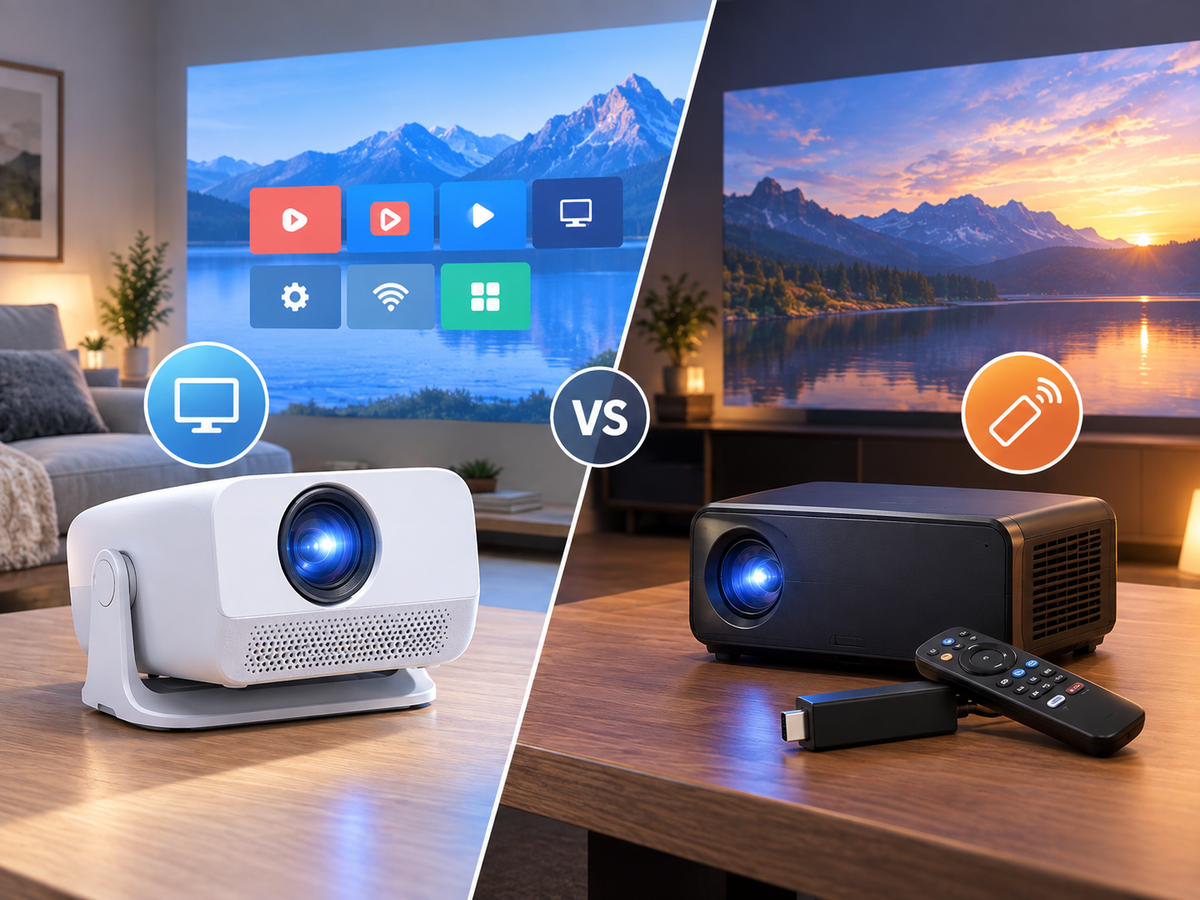

Connecting an iPhone to a projector can be done in two main ways: wired HDMI or wireless screen mirroring. HDMI is usually the more stable option, while wireless mirroring is more convenient when the projector supports a compatible mirroring protocol.
The right method depends on your iPhone connector, projector inputs, wireless compatibility, and what you want to display.
Quick Answer: Which iPhone-to-Projector Connection Should You Use?
|
Connection Method |
What You Need |
Best For |
Stability |
|
HDMI adapter |
iPhone adapter + HDMI cable |
Movies, presentations, reliable display |
High |
|
Wireless mirroring |
Compatible projector + same Wi-Fi |
Photos, presentations, casual viewing |
Depends on network |
|
External streaming device |
Streaming device + HDMI |
Supported streaming apps |
High |
Simple rule: If you want the most predictable connection, use HDMI. If you want a cable-free setup, try wireless screen mirroring first.
iPhone to Projector: Choose Your Connection
The easiest way to decide is to start with the projector rather than the iPhone.
Does your projector have a compatible wireless screen-mirroring function?
→ Yes: Try wireless mirroring.
→ No: Use an HDMI adapter.
Does your iPhone have a Lightning or USB-C port?
→ Lightning: Use a compatible Lightning-to-HDMI adapter.
→ USB-C: Use a compatible USB-C-to-HDMI adapter.
Want to watch content from a streaming service?
→ Check whether the app and projector support the required DRM/HDCP and casting method. If wireless mirroring is restricted, an HDMI-connected streaming device may be a more reliable solution.
Method 1: Connect an iPhone to a Projector With HDMI
A wired HDMI connection is generally the simplest choice when you need a stable display.
What You Need
· iPhone
· Compatible Lightning-to-HDMI or USB-C-to-HDMI adapter
· HDMI cable
· Projector with an HDMI input
Step-by-Step
1. Check your iPhone connector
Older compatible iPhones use a Lightning port, while newer iPhone models use USB-C.
Choose an adapter that matches your iPhone.
2. Connect the adapter
Plug the Lightning-to-HDMI or USB-C-to-HDMI adapter into your iPhone.
3. Connect the HDMI cable
Connect one end of the HDMI cable to the adapter and the other end to the projector's HDMI port.
4. Select HDMI input
Turn on the projector and select the corresponding HDMI input source.
5. Check the projected image
Your iPhone display should appear on the projector if the adapter, cable, and projector input are working correctly.
If the iPhone Screen Does Not Appear
Check these items first:
· Make sure the HDMI cable is fully connected.
· Confirm that the projector is set to the correct HDMI source.
· Make sure the adapter is compatible with your iPhone.
· Try another HDMI cable or input.
· Restart the iPhone and projector if necessary.
For important presentations or situations where connection stability matters, a wired HDMI setup can reduce wireless connection variables.
Method 2: Connect an iPhone to a Projector Wirelessly
Wireless projection removes the need for an HDMI cable, making it useful for presentations, photos, and other casual screen-sharing situations.
However, not every projector supports the same wireless protocol. The projector must support a screen-mirroring method compatible with the iPhone.
Step-by-Step
1. Connect both devices to Wi-Fi
Connect your iPhone and compatible projector to the same Wi-Fi network.
2. Open Control Center
On your iPhone, open Control Center.
3. Select Screen Mirroring
Tap Screen Mirroring.
4. Select the compatible projector or receiver
Choose the device shown in the available screen-mirroring list.
5. Follow any on-screen instructions
If a code or confirmation appears, complete the pairing process.
Once connected, the iPhone screen can be displayed on the projector.For more troubleshooting steps, see our Magcubic Support Center.
Wireless Mirroring Troubleshooting
If the projector does not appear on your iPhone:
1. Confirm that both devices are connected to the same Wi-Fi network.
2. Restart the projector and iPhone.
3. Check whether the projector's wireless mirroring feature is enabled.
4. Make sure the projector supports a screen-mirroring protocol compatible with iPhone.
5. Try moving the devices closer to the Wi-Fi router.
6. If wireless mirroring remains unavailable, use an HDMI connection instead.
What About AirPlay?
AirPlay can make iPhone-to-display connections convenient, but compatibility matters.
An iPhone's Screen Mirroring feature does not automatically mean that every projector can receive an AirPlay connection. The projector or an external receiver needs to support the appropriate Apple-compatible wireless technology.
Therefore, before choosing a projector specifically for wireless iPhone mirroring, check its supported wireless protocols rather than relying only on terms such as "wireless projection" or "screen mirroring."
Can You Watch Streaming Services by Mirroring an iPhone?
Not always.
Some streaming services use digital rights management (DRM) and HDCP requirements that can prevent content from being displayed through certain wireless mirroring methods.
This means there is an important difference between:
Mirroring your iPhone screen
and
Streaming protected video content to a projector.
Your iPhone may successfully mirror photos, presentations, or other content while a particular streaming app shows a black screen or refuses to play video.
For streaming, an HDMI-connected compatible streaming device can provide a more predictable setup when the required service and device support are available.
iPhone Projector Connection: Quick Decision Guide
Use this checklist when setting up your projector:
📱 For presentations
iPhone → HDMI adapter → HDMI cable → Projector
A wired connection is useful when reliability is more important than convenience.
🖼️ For photos and personal videos
iPhone → Wireless screen mirroring → Compatible projector
This avoids cables and is convenient for casual viewing.
🎬 For protected streaming content
iPhone / Streaming device → HDMI → Projector
Check the streaming service's compatibility and DRM/HDCP requirements before choosing a connection method.
🧳 For portable projector setups
A wireless connection can reduce the number of cables you need to carry, but it is worth keeping an HDMI adapter as a backup when connection reliability matters.
iPhone to Projector FAQ
Can I connect my iPhone directly to a projector?
Usually, you need either a compatible HDMI adapter and cable or a projector that supports a compatible wireless screen-mirroring method.
Can I connect an iPhone to a projector without Wi-Fi?
Yes. An HDMI adapter can connect the iPhone to a projector without relying on Wi-Fi.
Why can't I see my projector under Screen Mirroring?
The projector may not support the required wireless protocol, or the iPhone and projector may not be connected to the same Wi-Fi network. Restarting both devices and checking the projector's wireless settings can also help.
Is HDMI better than wireless mirroring?
They serve different purposes. HDMI generally provides a more stable connection, while wireless mirroring is more convenient because it avoids cables.
Why does my streaming app show a black screen when mirrored?
Some streaming services restrict screen mirroring because of DRM or HDCP requirements. Screen mirroring can therefore work for some content but not for protected video.
Do I need a special app to connect my iPhone to a projector?
Not necessarily. HDMI connections use a compatible adapter, while wireless connections depend on the projector's supported screen-mirroring technology.
Final Takeaway
The best way to connect an iPhone to a projector depends on what you need to display.
For maximum stability, choose HDMI. For cable-free convenience, use compatible wireless screen mirroring. For protected streaming content, check the service and device compatibility before relying on wireless mirroring.
Before buying or setting up a projector, check its HDMI inputs, supported wireless protocols, and compatibility with your iPhone model. This can prevent many common connection problems before they occur.