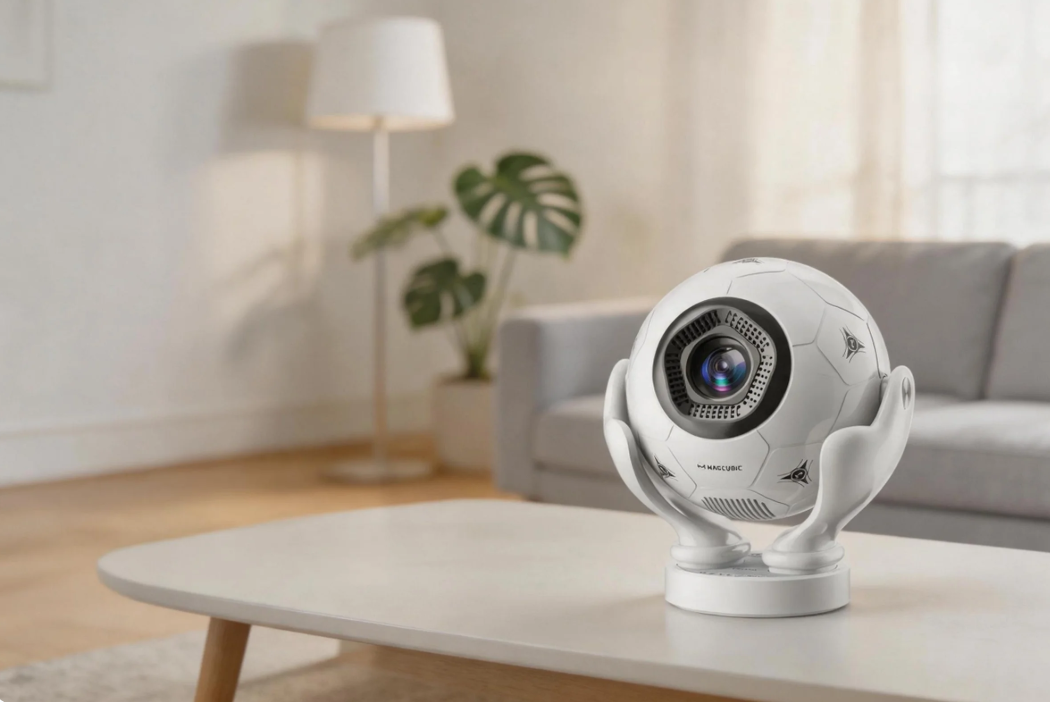

The Magcubic HY350 Max is designed to deliver a smooth home entertainment experience with smart features, auto-focus, and easy setup. However, like any projector, you may occasionally encounter issues such as blurry images, yellow spots, brightness concerns, or image distortion.
This guide covers the most common HY350 Max problems and provides simple solutions to help you get back to enjoying your favorite movies, shows, and games.
1. How Can I Fix Yellow Spots or Stains on the HY350 Max?
If you notice yellow spots, dark patches, or discoloration on the projected image, try the following steps:
Clean the Lens
Dust, fingerprints, or smudges on the lens can affect image quality. Use a soft microfiber cloth to gently clean the lens surface.
Check the Projection Surface
Inspect your wall or projection screen for stains, uneven paint, or surface damage that could create visible marks during projection.
Verify Projector Placement
Make sure the projector is placed on a stable and level surface. Improper positioning can sometimes create image irregularities.
Remove Dust Buildup
Over time, dust can accumulate inside the projector and affect image quality. Regular maintenance helps keep the optical system performing properly.
Tip: Magcubic users can contact official customer support to request the HY350 Max dust-cleaning tutorial video for detailed guidance.
2. How Can I Fix the HY350 Max Not Projecting After Startup?
If the projector powers on but does not display an image, try these solutions:
Restore Factory Settings
Go to: Settings → Other Settings → Restore Factory Settings
After the reset is complete, restart the projector and check whether the image returns.
Update the Firmware
Outdated or corrupted system files can sometimes cause startup issues. Installing the latest HY350 Max firmware may help restore normal operation and improve overall system stability.
For firmware assistance, contact Magcubic support.
3. How Can I Fix Light or Color Unevenness?
Uneven brightness or color distribution is often related to projector placement and image settings.
Position the Projector Correctly
Place the projector on a flat surface with the lens facing directly toward the projection wall or screen.
Use the Recommended Distance
For optimal image performance, the recommended projection distance is approximately 1.68 meters (5.5 feet).
Adjust Projection Settings
Navigate to: Settings → Projection Settings
Adjust the brightness and image settings to improve clarity and image uniformity.
4. How Do I Adjust the Brightness of the HY350 Max?
Some users expect to find brightness controls within Android settings, but the HY350 Max works differently.
Change Device Mode
Go to: Settings → Projection Settings → Device Mode
Select the viewing mode that best matches your environment and brightness requirements.
Adjust Picture Settings in HDMI or USB Mode
When using an HDMI device or USB drive, press the MENU button on the remote control to access additional image controls, including brightness, contrast, saturation, and sharpness.
5. Why Is the Projector Image Blurry or Out of Focus?
If the image does not appear sharp, several factors may be affecting the focus system.
Check the Projection Distance
The HY350 Max is designed to work within a projection range of 0.9 to 3.1 meters. Positioning outside this range may reduce image clarity.
Reposition the Projector
Move the projector slightly forward or backward and allow the auto-focus system to readjust.
Update the Software
Keeping the projector updated ensures the latest autofocus improvements and performance enhancements are installed.
Use Manual Focus
If necessary, use the focus buttons on the remote control to manually fine-tune the image.
Avoid Reflective Surfaces
Highly reflective walls can interfere with autofocus performance. For the best results, use a matte projection surface or an ALR screen.
6. What Should I Do If the Image Is Tilted?
A tilted or distorted image is usually caused by projector positioning or keystone settings.
Align the Projector Properly
Place the projector on a stable surface and ensure the lens is as perpendicular to the wall as possible.
Reset Keystone Correction
Go to: Settings → Projection Settings → Reset Trapezoidal Correction
This restores the default keystone settings.
Adjust Keystone Manually
If the image still appears distorted, disable automatic keystone correction and manually adjust the image until it appears properly aligned.
Final Thoughts
Most HY350 Max issues can be resolved with simple adjustments, proper placement, regular cleaning, and firmware updates. Whether you're dealing with yellow spots, focus problems, brightness concerns, startup issues, or image distortion, the troubleshooting steps above can help restore optimal performance.
If the problem persists after following these recommendations, contact Magcubic customer support for further assistance and technical guidance.